Unattended access
Turn it on once on your home PC. Log in with your account from any other device and connect — nobody has to click Allow.
Install ReachPC on your PC, then see and control it from another computer or your phone's browser. Your own account, no router setup, and screen video that goes straight between your devices.
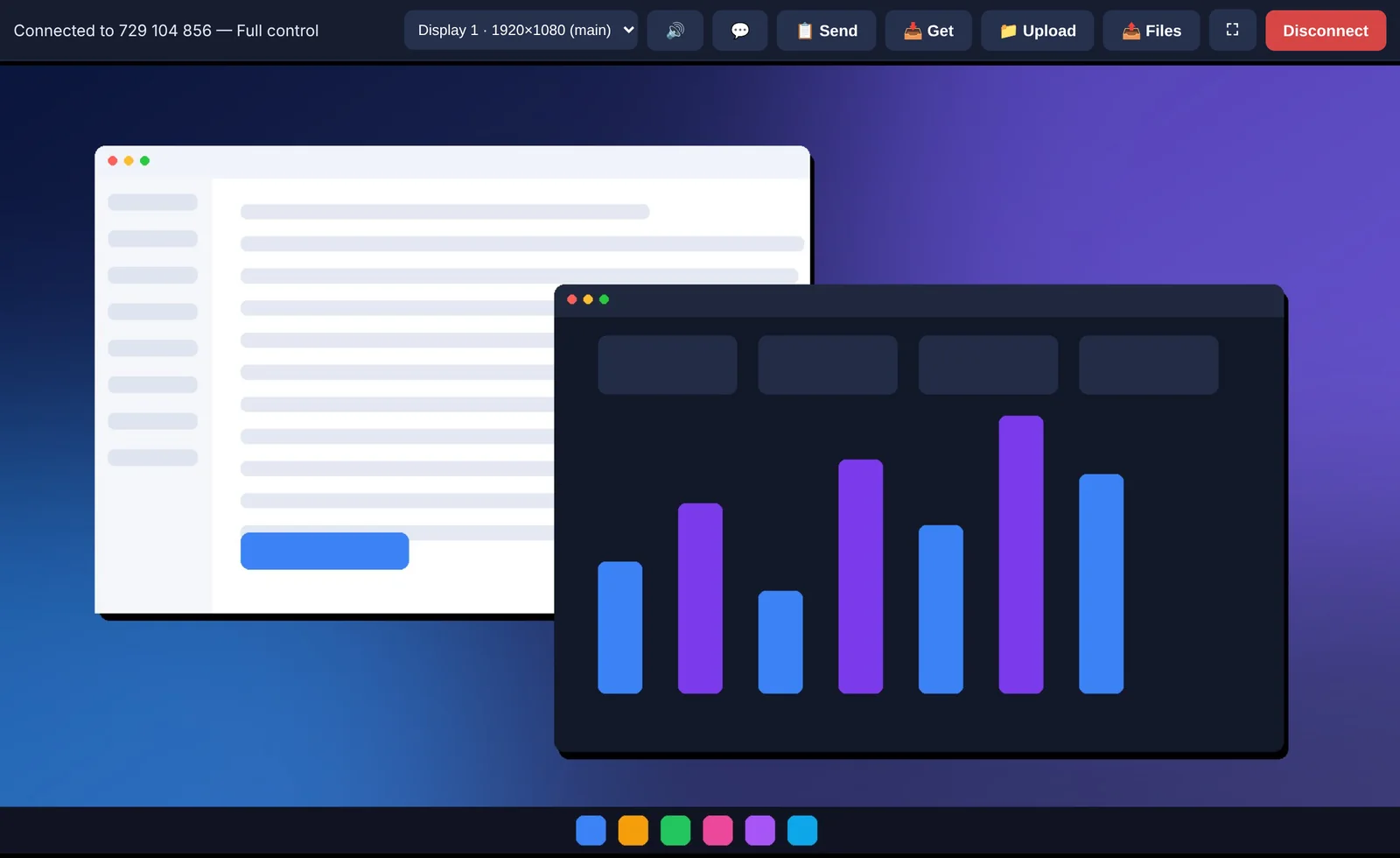
A small, focused remote desktop you can understand, host yourself and share with people you trust.
Turn it on once on your home PC. Log in with your account from any other device and connect — nobody has to click Allow.
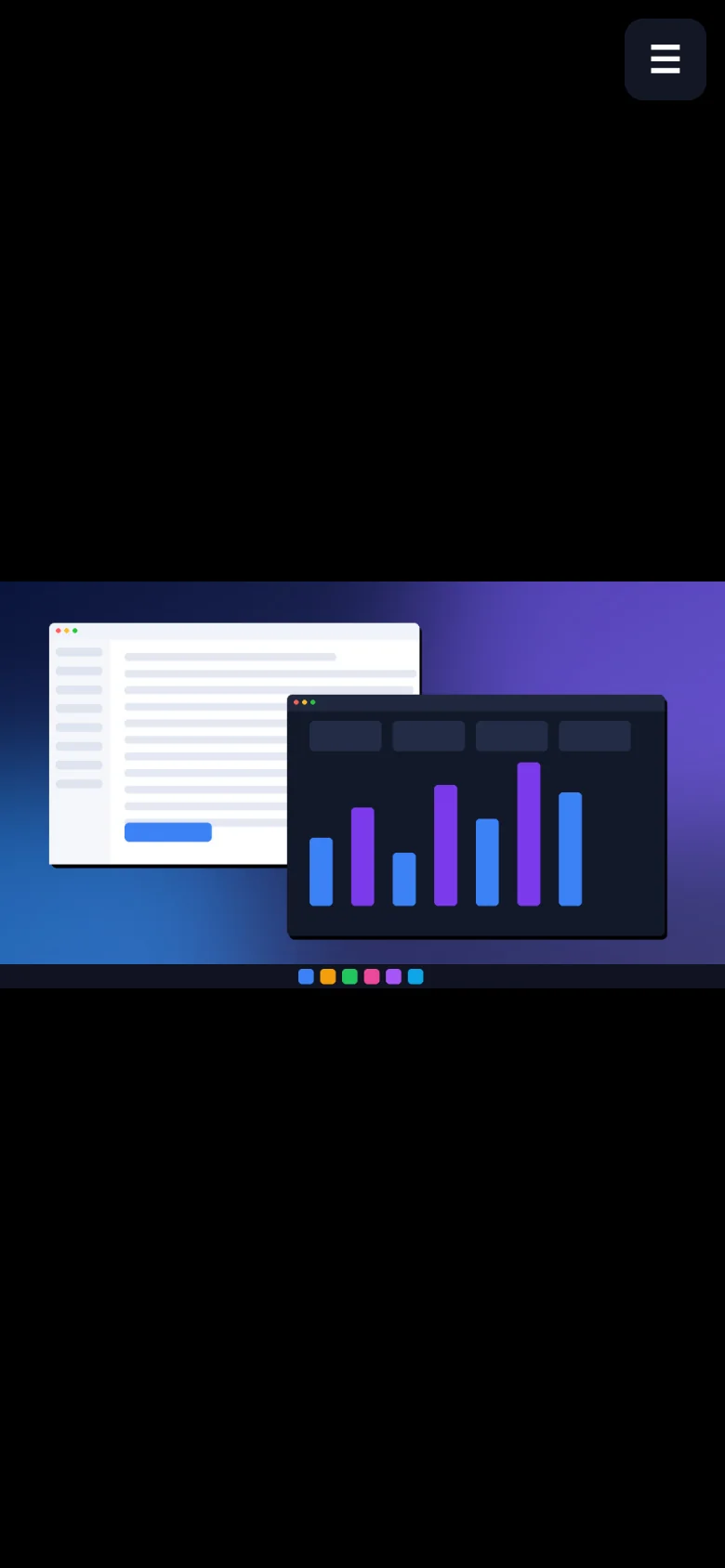
Open the web viewer in any mobile browser. Touch trackpad, right click, scroll, on-screen keyboard and a special-keys bar.
Screen video travels directly between your devices, encrypted by WebRTC. The server only introduces them to each other.
Temporary ID + password, and an Allow / View only / Reject prompt for every connection that is not your own account.
Switch between monitors during a session. System audio streaming is available on Windows hosts.
Send clipboard text, upload files, download from a shared folder, and chat with whoever is at the PC.
Invite-only registration with an admin page: create invite codes, reset passwords, disable or delete accounts.
MIT licensed. Run the server on a VPS, or even on cPanel shared hosting that has a Node.js app option.
Download the Windows app and install it on the computer you want to reach.
Create an account with your invite code, then tick Unattended access and Start with system.
Open the app on another PC, or the web viewer on your phone, log in and tap Connect.
Prefer to approve every connection? Skip unattended access and share the temporary ID + password instead. Read the manual →
Free for personal use. Pick the way you want to use it.
Installer for Windows 10/11 (64-bit). Version 2.0.0.
Download .exeNothing to install. Open it in Chrome, Safari or any modern browser and add it to your home screen.
Open web viewerRead the code, build it yourself, or run your own server. Linux (X11) and macOS can run from source.
View on GitHubWindows SmartScreen may warn you. The installer is not code-signed yet. Click More info → Run anyway. Only download ReachPC from this site or the official GitHub repository.
Use responsibly. Only connect to computers you own or have clear permission to access. Never give your ID, password or account to someone who contacted you unexpectedly.
Step-by-step guide with annotated screenshots for the PC app, phone viewer and admin page.
Source code, releases and issue tracker.
Run your own server on a VPS or cPanel hosting.
Step-by-step shared-hosting setup in Bangla.
Acceptable use: only computers you own or may access.
Hardening checklist and how to report a vulnerability.
Yes. It is open source under the MIT license. The only cost is whatever the person running the server pays for hosting.
Screen video is sent peer-to-peer and encrypted by WebRTC. Unknown connections need the temporary password and your manual approval. Unattended access is optional, off by default, and only works for devices logged into your account. That said, this is an early release that has not been independently audited — use a strong account password and only trust servers you run or know.
No. Devices connect outwards to the server and then link up directly using WebRTC. On very strict networks (some offices or mobile carriers) a TURN relay server may be needed — the server owner can add one.
Yes. Enable Unattended access on the home PC, log in on your phone at the web viewer address, and tap Connect. No app install is needed on the phone.
No. The PC must be on, connected to the internet, and the Windows user must be signed in with ReachPC running (it stays in the tray). Controlling the Windows lock screen or UAC prompts is not supported yet.
The installer is not code-signed yet (certificates cost money). Click More info → Run anyway. You can verify the download with the SHA-256 checksum shown in the Download section.
The installer is for Windows 10/11 (64-bit). The mobile/web viewer works in any modern browser. Linux (X11) and macOS can run the app from source, with less testing.
Registration is invite-only. Ask the person running the server for an invite code, then register in the app or on the web page. You can also connect as a guest using only an ID and temporary password.
Only your own account. Devices you sign in with are listed under My devices for you alone. The server owner can see account emails and device names, but not your screen.
Yes. The PC shows a red banner while someone is connected, with a Disconnect button. You can also turn Unattended access off at any time, or quit the app from the tray.
Yes — that is the idea. See the self-hosting guide in the GitHub repository. It needs Node.js 20+, HTTPS, and optionally a TURN server for strict networks.
ReachPC started with a simple need: reach a home PC from the office, or from a phone, without handing a third-party company the keys. It is built on open web technology — WebRTC for the live screen, a small Node.js server for sign-in and introductions — so anyone can read it, host it and improve it.
It is an early release: it works, it is actively improving, and it has not been independently audited. Honest feedback is the most useful thing you can send.
No ads, no tracking, no screen recording. Video goes device-to-device.
One app, one account. Connect in a couple of taps.
MIT licensed — use it, learn from it, change it.
Found a bug, have an idea, or just want to say it works? We would love to hear it.
Questions about setup, invite codes or self-hosting? Send a message.